A useful speech recognizer does not always need a GPU or a cloud account. Cactus Compute released Whistle on October 2, 2026, with a model file of approximately 16.9 MB. That caught my attention because speech recognition becomes much more interesting when it can sit inside the application or device that needs it. Cactus’s announcement describes a CPU-based model designed for small devices as well as ordinary computers.
I put together a Python project called Whisper Speech 2 Text to make it easier to experiment with local transcription, timed words, subtitle exports, and a small amateur-radio example. The project name is Whisper Speech 2 Text, but the engine in this project is Whistle from Cactus Compute. OpenAI Whisper is a separate model family.
The code is on GitHub: jsammarco/Whisper-Speech-2-Text.
Seven languages and a timestamp for each word
Whistle’s model card lists English, German, French, Spanish, Italian, Dutch, and Polish. It can detect the language or accept a language hint. The same API can return a transcript and a list of words, each with its start time, end time, and estimated probability.
That changes what a transcript can do. A text file is useful for reading or searching. Add word times, and an application can jump to the moment a customer mentioned a part number, highlight words during playback, or create captions that follow the recording. Keeping those times in a CSV also makes it easier to inspect the result without writing another program.
The Whistle usage guide explains that alignment comes from decoder attention and has an 80 ms resolution. A timestamp printed as 0.560 should be treated as an estimate at that resolution. I would still review subtitles before publishing them and check important names or numbers against the audio.
The ESP32 demonstration is what makes the size exciting
This video of Whistle running on an ESP32 is the hardware demonstration that prompted the ESP32 discussion here. It is a separate builder’s project, and I have not reproduced that board setup.
It illustrates a useful direction: speech recognition can become a feature of a small device, with the audio processed close to the microphone. For a workshop control, a small home-automation interface, or a purpose-built accessibility device, that opens up different design choices than sending every recording to a remote service.
The exact hardware and software configuration matter. A 16.9 MB model archive tells us about storage size; it does not tell us the complete working-memory requirement. Flash capacity, PSRAM, model variant, runtime port, and the amount of audio buffered all affect what fits. Treat the implementation shown in the video as a specific engineering result rather than assuming the full desktop setup drops unchanged onto any ESP32 board.
My repository focuses on desktop Python tools. There are no ESP32 firmware or flashing scripts in it. The video is included as an article reference for readers interested in the embedded side.
A practical local workflow
The project starts with a file-transcription command:
python transcribe.py recording.wav --output output/recordingThat produces a plain transcript, a JSON result, a word-level CSV, and SRT and WebVTT captions. The caption files group up to six words per cue by default; --words-per-cue 1 creates word-by-word cues. The JSON keeps the upstream recognition fields so another application can use them directly.
For a known language or an unusual name, the command can be more specific:
python transcribe.py entrevista.wav --language es --keyword "Sammarco" --output output/entrevistaKeyword biasing is particularly useful when an application already knows the vocabulary people are likely to use: contact names, product names, station identifiers, or room names. It can help recognition choose between similar-sounding possibilities. It also needs restraint; the result still needs to match what was actually said.
For other audio formats, I added a small local FFmpeg wrapper:
python prepare_audio.py interview.mp3 output/interview-16k.wav
python transcribe.py output/interview-16k.wav --output output/interview
The converter creates a 16 kHz mono PCM WAV. It also works with a local video file that contains an audio track. Existing files are protected unless --overwrite is supplied.
Live speech should survive the time spent processing it
The live microphone tool accumulates a phrase, waits for a pause, then transcribes it. That is convenient for dictation experiments because each spoken thought becomes a completed line.
python live_transcribe.py --language en --pause 1.5 --word-timestamps --jsonl output/live.jsonlAn important improvement is the handling of audio captured during inference. The original experiment cleared that audio from the queue after a transcription. The revised tool keeps it queued for the next phrase. It has a bounded buffer and reports an overrun explicitly if processing falls too far behind.
Word times use the capture sample clock, so waiting for the previous inference does not shift the next phrase’s timestamps. This matters when the transcript is going to be compared with a recording or used by another application. A test injects additional speech while a simulated inference runs and checks that the second phrase is retained with the correct time offset.
The pause detector uses audio energy. A quiet microphone may need a lower threshold, and background noise may need a higher one. This tool produces completed phrases; upstream also offers a streaming interface for applications that need provisional words while someone is still talking.
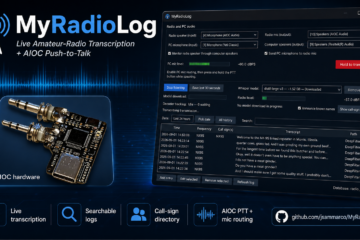
An amateur-radio example: phonetics to a callsign
One of my existing experiments was recognizing a callsign spoken with phonetic words. I kept that example and made it easier to run:
python callsign.py --text "Kilo Echo Niner Golf Delta Hotel"The deterministic decoder returns KE9GDH. An audio file can go through Whistle first. There is also an optional Needle 3 step that returns a process_callsign tool call using the decoded value.
This is a useful pattern for small voice applications: recognition turns audio into words, a small amount of explicit application logic handles a well-defined format, and a tool-calling model can provide structured intent when needed. The demo prints its result and does not execute an external action. It is a callsign-format experiment, not a licensing lookup or a general radio-traffic recognizer.
What I checked
The local smoke test used Windows x64, Python 3.10.16, and cactus-needle 3.2.8. An existing 2.51-second English recording produced six timed words and all five export formats. The phonetic example decoded the callsign correctly, and the optional Needle step returned the expected tool name and callsign argument. FFmpeg conversion also produced the expected 16 kHz mono PCM file.
Those are functional checks on one recording. They do not establish accuracy across languages, microphones, accents, or noisy environments. The automated tests also cover subtitle formatting, file protection, phrase boundaries, and the simulated microphone queue. The private recording, generated transcripts, and model archives stay out of GitHub.
Cactus publishes broader accuracy and speed results in its release announcement. Its latency comparison uses an Apple M4 Pro CPU. Those measurements should be read with that hardware and benchmark setup in mind; they are not measurements from the ESP32 video or my desktop smoke test.
Local processing still needs a sensible setup
The Python utilities run recognition locally and disable upstream usage telemetry before importing Needle. The initial package, runtime, and model downloads still require connectivity. A disconnected deployment needs those pieces provisioned ahead of time, following the Cactus device and offline guide.
For me, the appeal is having a small, understandable starting point: feed in a recording, get back words with times, and decide how those words belong in the application. The repository includes installation instructions, command examples, troubleshooting, and tests so the experiment can grow beyond a single script.
Start with the project README, try a recording you know well, and compare the transcript with the original audio. That gives you a concrete basis for deciding where local speech recognition can help in your own work.

0 Comments